How to: Screenshot your timeline
31st August 2026 | Tiki-Toki Editorial
Here's how to capture a full-width screenshot or PDF of your timeline, using tools already built into your Mac or Windows PC.
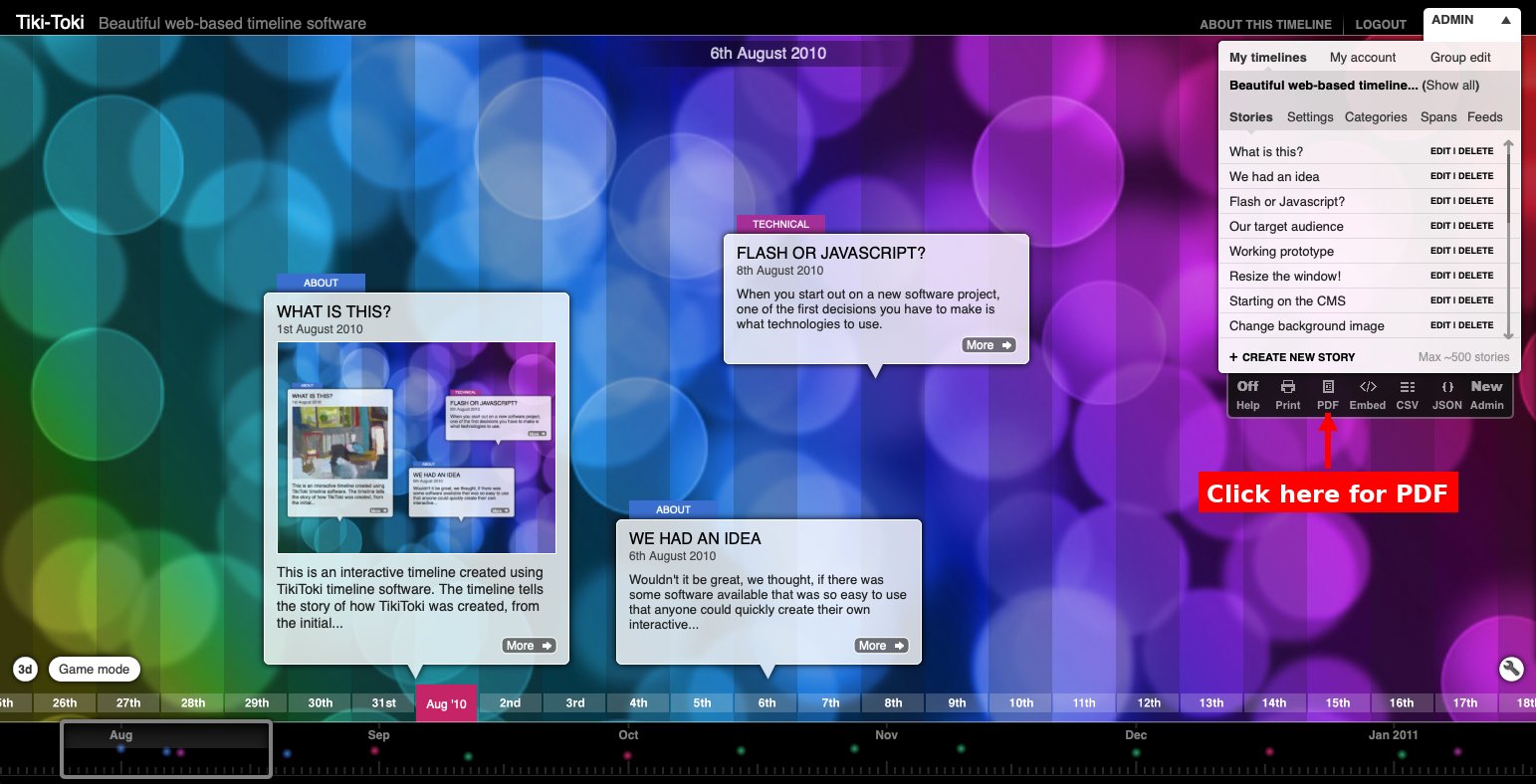
We recently had a user get in touch asking how to generate a graphical image of their timeline — a great question, since timelines can stretch well beyond a normal screen width. Rather than stitching together multiple screenshots, you can capture the whole thing in one go using your browser or operating system's built-in tools. The steps differ slightly depending on whether you're on a Mac or a Windows PC.
Mac users can use either the Safari or the Chrome method below — pick whichever browser you have open. Windows users should follow the Chrome instructions.
On a Mac
Option 1: Safari
-
1. Open your timeline, and then in the admin panel click the PDF option in the black bar underneath to find your timeline's special wide screenshot link. It will look something like
http://www.tiki-toki.com/timeline/imagemode/43/Beautiful-web-based-timeline-software/. -
2. Open that link in Safari.
-
3. Go to File > Export as PDF.
-
4. Safari will generate a single continuous PDF covering the full width of the timeline — no need to stitch pages together.
-
5. Save the PDF. You can now use it to view, share, or print your timeline.
-
6. To print it out, open the saved file in the Preview app, rotate the image so it is a vertical strip, then print from there.
Option 2: Chrome
Mac users with Chrome installed can also follow the Windows/Chrome instructions below — the steps are identical on both platforms.
On Windows (or Linux)
-
1. Open your timeline, and then in the admin panel click the PDF option in the black bar underneath to find your timeline's special wide screenshot link. It will look something like
http://www.tiki-toki.com/timeline/imagemode/43/Beautiful-web-based-timeline-software/ -
2. Open that link in Google Chrome (or Edge on Windows).
-
3. Open DevTools (press F12, or right-click the page and choose Inspect).
-
4. Open the Command Menu with Ctrl+Shift+P, type full, and select Capture full size screenshot.
-
5. Chrome will save a full-size PNG of your timeline to your Downloads folder.
-
6. Need a PDF? Right-click the file in File Explorer to Rotate it if needed, then convert to PDF using a free online converter or your printer dialog's "Print to PDF" option.
These steps also work on Linux — the same DevTools screenshot feature is built into Chrome regardless of operating system. Rotating the image and converting to PDF will just depend on whichever image viewer and print tools your distro provides.
Using Microsoft Edge instead of Chrome? No problem — Edge is built on the same underlying engine as Chrome, so all the DevTools steps above work identically; just swap in Edge wherever it says Chrome.
If the above doesn't work
Every so often, browser updates change how these built-in tools behave. If you run into trouble with the Chrome or Safari steps above, here are a couple of alternatives to try. Both are third-party tools not made by Tiki-Toki, so please use them at your own risk.
Mac: Paparazzi
-
1. Download and install the free Paparazzi website screenshot app.
-
2. Enter your timeline's special wide screenshot link (see step 1 above) into Paparazzi and take a screenshot.
-
3. Open the image Paparazzi created in the Preview app, rotate it so it's a vertical strip, and save.
-
4. Print the image, or use Safari's File > Export as PDF to turn it into a PDF.
Windows (or Mac): Chrome extensions
Several free Chrome extensions can capture a full-page screenshot in one click, which may be a simpler option than the DevTools method if you use Chrome regularly. Search the Chrome Web Store for terms like "full page screenshot" and check the reviews and permissions before installing, since availability and quality can vary and listings do occasionally get pulled. As with Paparazzi, these are third-party tools we don't build or maintain, so please use them at your own risk.
We'd love to know how you get on. Do you have any suggestions on how we can make this easier? Please email feedback to hello@tiki-toki.com.