Accessibility: Making Tiki-Toki easier for everyone to use
15th October 2026 | Tiki-Toki Editorial
What we've changed in your timelines, the timeline editor and your account pages, how we tested it, and what's still to come.
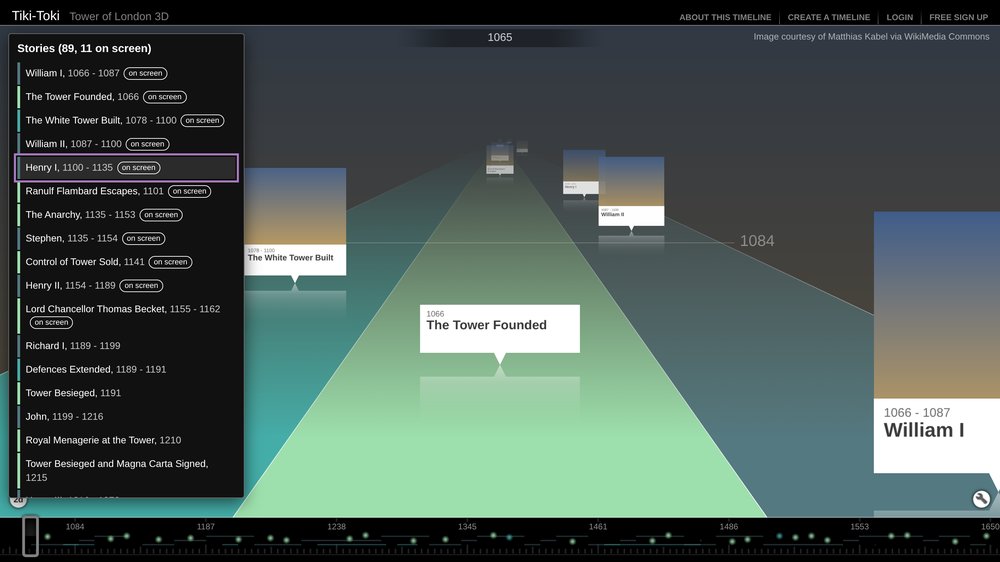
Over the past few weeks we have made a big push to make Tiki-Toki easier to use for everyone, including people who use a keyboard instead of a mouse, people who use screen readers, and people who need stronger contrast or less motion on screen.
A lot of you use Tiki-Toki in classrooms, schools, universities, museums and public organisations. Many of you have accessibility duties of your own, and your students and visitors deserve timelines they can actually use. This post explains what we have changed, how we tested it, and what is still on the to-do list. We have measured our work against WCAG 2.2 level AA, the standard most schools and public bodies are asked to meet.
Your published and embedded timelines
This is where most of the work went, because it is what your students, visitors and readers see. Every timeline, whether viewed on Tiki-Toki or embedded in your own site, gets these improvements automatically. You don't need to change anything.
A story navigator for keyboard and screen reader users, in 2D and 3D. Every timeline now has a list of all its stories in date order, respecting any filters. Move through it with the arrow keys and press Enter to open a story. Screen readers hear each story's headline and date as you go, plus which stories are currently on screen. In the 2D views the story you have moved to is highlighted on the timeline, and keyboard users no longer have to tab past dozens of "More" links to get anywhere. In 3D, where stories are drawn as a picture that screen readers can't read, the navigator opens up every story.
Everything works from the keyboard. The date slider, the controls panel, search, category filters, view and zoom options, the story panel, the image viewer and even game mode can all be used without a mouse.
You can always see where you are. A clear focus ring appears when someone presses Tab, and disappears again for mouse users, so the look of your timeline doesn't change.
Story panels behave like proper dialogs. Focus moves into the story when it opens and returns to where you were when it closes.
Stronger contrast. We fixed text that was too faint, and white labels on pale category colours now switch to a darker colour when they need to, so they stay readable whichever colours you choose.
Less motion if you want it. If someone has asked their device to reduce motion, animations are switched off and auto-play doesn't start. Auto-play also has a visible Pause button.
Better descriptions. Images get sensible alternative text, embedded videos and maps are titled with the story headline, and the page tells screen readers which language it is in.
Pinch to zoom is no longer blocked. Visitors can zoom in on phones and tablets to read small text.
Want to try it? Our guide to using a timeline with the keyboard lists every key, with tips for Mac, iPad and iPhone.
The timeline editor
Accessibility isn't only for the people reading timelines. Teachers, pupils and staff who build them need to be able to use the editor too, so it has had the same treatment: it now works with a keyboard and a screen reader, with clearer labels and error messages. There's a lot more to say about the editor, so it will get a post of its own soon.
Signing up, logging in and your account
We also worked through the home page, your account page and the FAQs, because nobody should get stuck before they even reach the editor.
Skip links let keyboard users jump straight to the main content, and on a long account page straight past your list of timelines to "Create new timeline", "Account settings" or "Upgrade".
Logging in and signing up work by keyboard and screen reader. Fields are labelled, the password field hides what you type, and errors appear next to the field they belong to and are read out.
The "I agree" box and other controls that only responded to a mouse click now work from the keyboard.
Clearer text and links. Faint grey text and footer links were darkened or lightened to meet contrast rules, and links in sentences are underlined.
Clearer buttons. PayPal buttons now say which plan they buy, such as "Buy the Silver account with PayPal", and links that open a new tab say so.
The FAQ page fits small screens without sideways scrolling.
How we tested, and what's still to do
We checked every screen with axe, a widely used automated accessibility checker, and it now reports no WCAG errors on any of them. We also went through every main task using only the keyboard: reading a timeline, playing the timeline game, editing and saving a story, signing up and managing an account. Pages were checked at 200% and 400% zoom and on a phone-sized screen.
We want to be honest about where we are. Automated tools and keyboard checks catch a lot, but not everything. Here is what is still to come:
Screen reader testing. We still need to test with real screen readers, NVDA on Windows and VoiceOver on Mac and iPhone. We expect to find and fix some rough edges there.
The rest of the website. The home, account and FAQ pages are done. Other pages on the site are still being worked through.
Your content. We can't add captions to your videos or descriptions to your images for you. The image caption field helps with images, and captions for video and audio are worth adding wherever you can.
Because of this, we aren't claiming full WCAG 2.2 AA conformance yet. That is our goal, and we are working towards it. Our new accessibility statement sets out what is covered and the known limitations. For schools and organisations that need the detail, the statement also links to our accessibility conformance reports (VPATs) for published timelines and for the editor.
Tell us what you find
The people who use assistive technology every day are the best testers there are. If you or your students hit a problem, or something could be easier, please email hello@tiki-toki.com. We read every message, and your feedback will shape the next round of fixes.
Thanks for making timelines with us, and for helping make them work for everyone.